HolePlan™ is a trademark of Hole Plan Ltd. All software code and 3D visualisation logic are protected under the International Copyright Law. This software is an independent engineering tool and is not affiliated with any hardware manufacturer.
This page guides you through the process of activating HolePlan.
1. Create Your Account
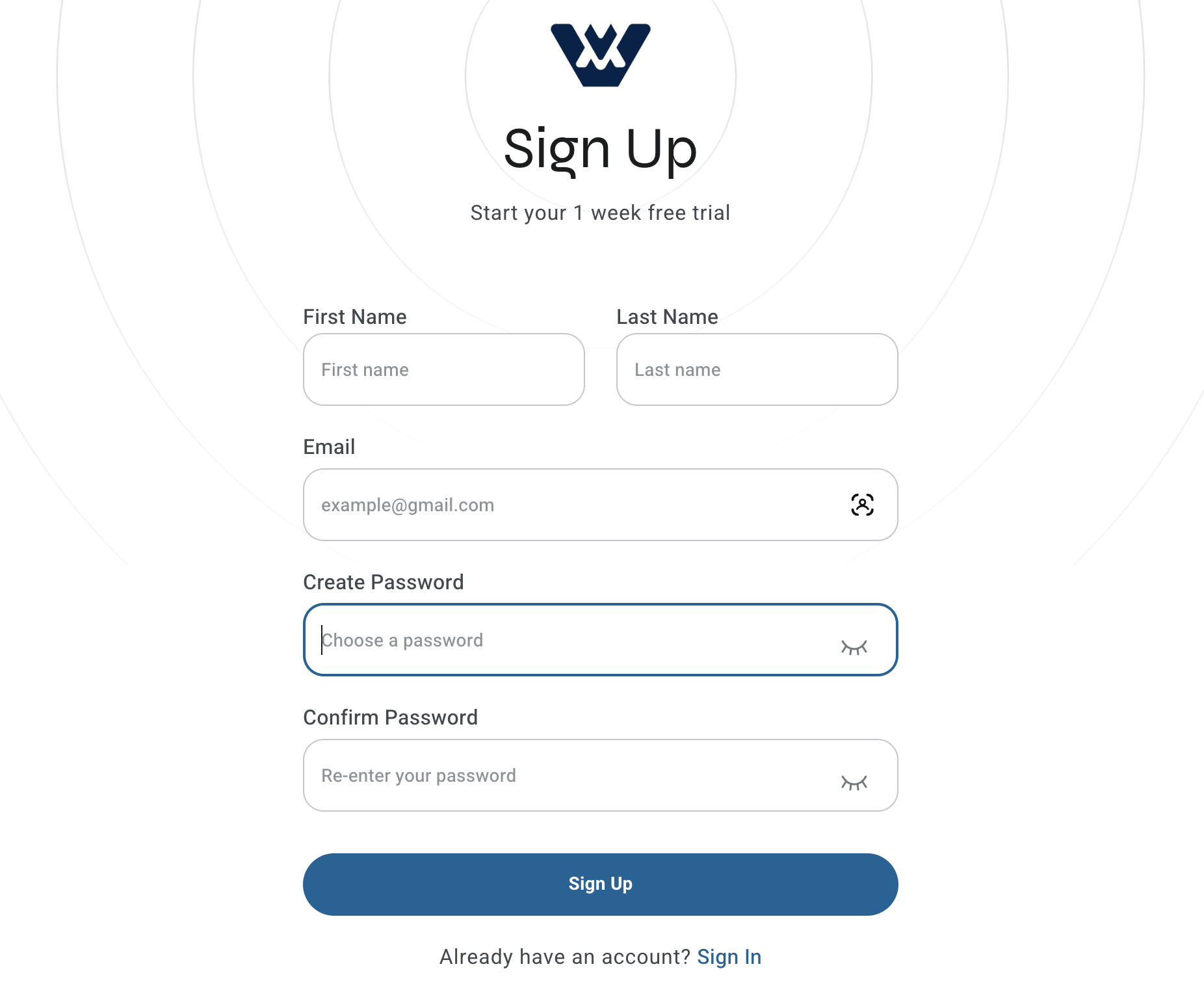
Your journey begins on our web portal. Register by providing your unique First Name, Last Name, and a secure Password.
Important
These credentials serve as your "Master Key." You will use the exact same login details to authorise and access the HolePlan desktop application.
Register on the portal to create your global account credentials.
2. Profile & Billing Setup
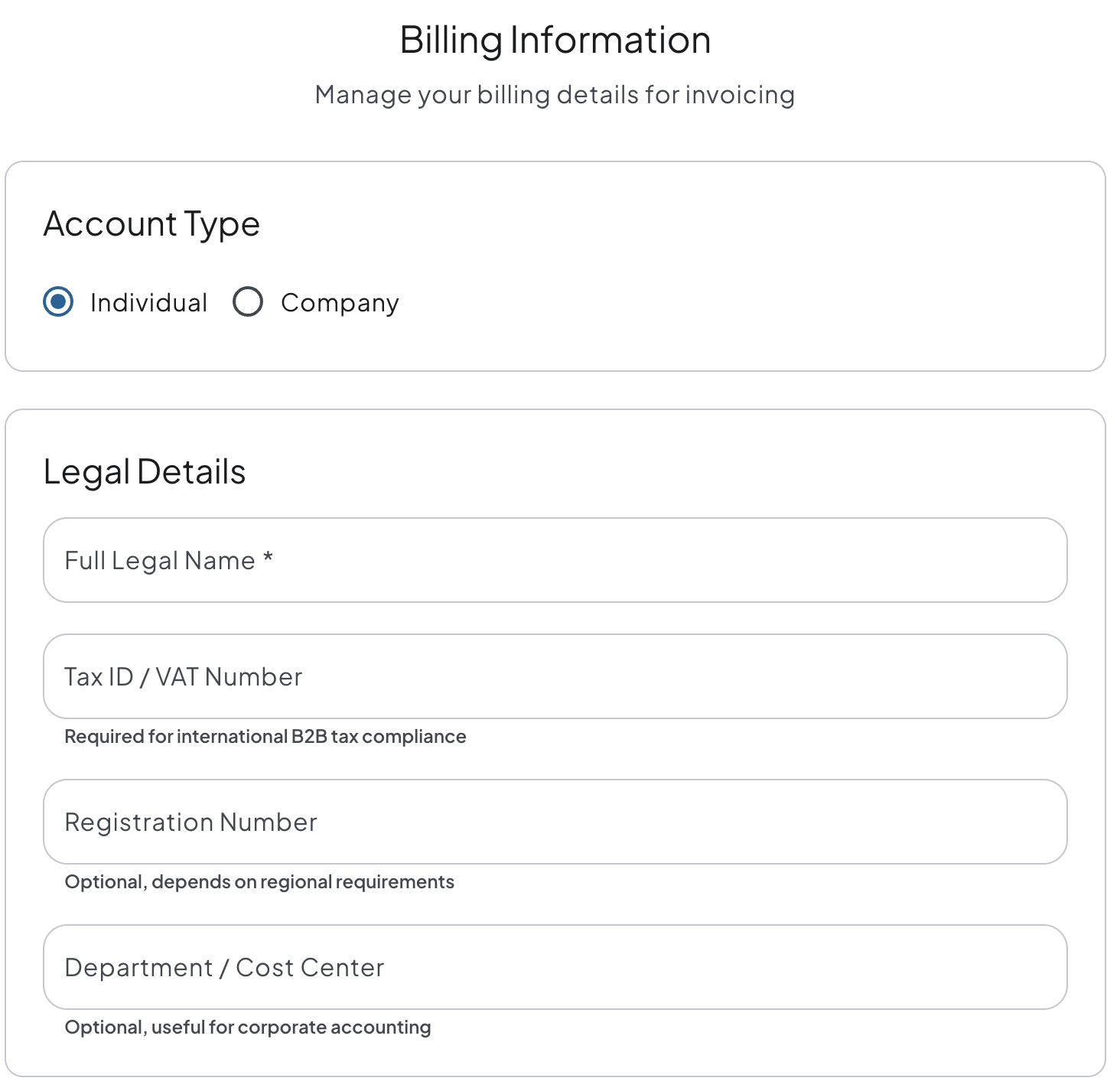
Complete Your Profile & Billing Information (Crucial Step) Before proceeding, you must fully set up your account. Navigate to the Account/Billing section of the web portal to fill in your company details and billing information.
Why this matters: Completing this profile is a mandatory step. It ensures your account is properly verified and allows our system to seamlessly generate and issue accurate invoices when you are ready to request a professional subscription.
3. Download & Installation
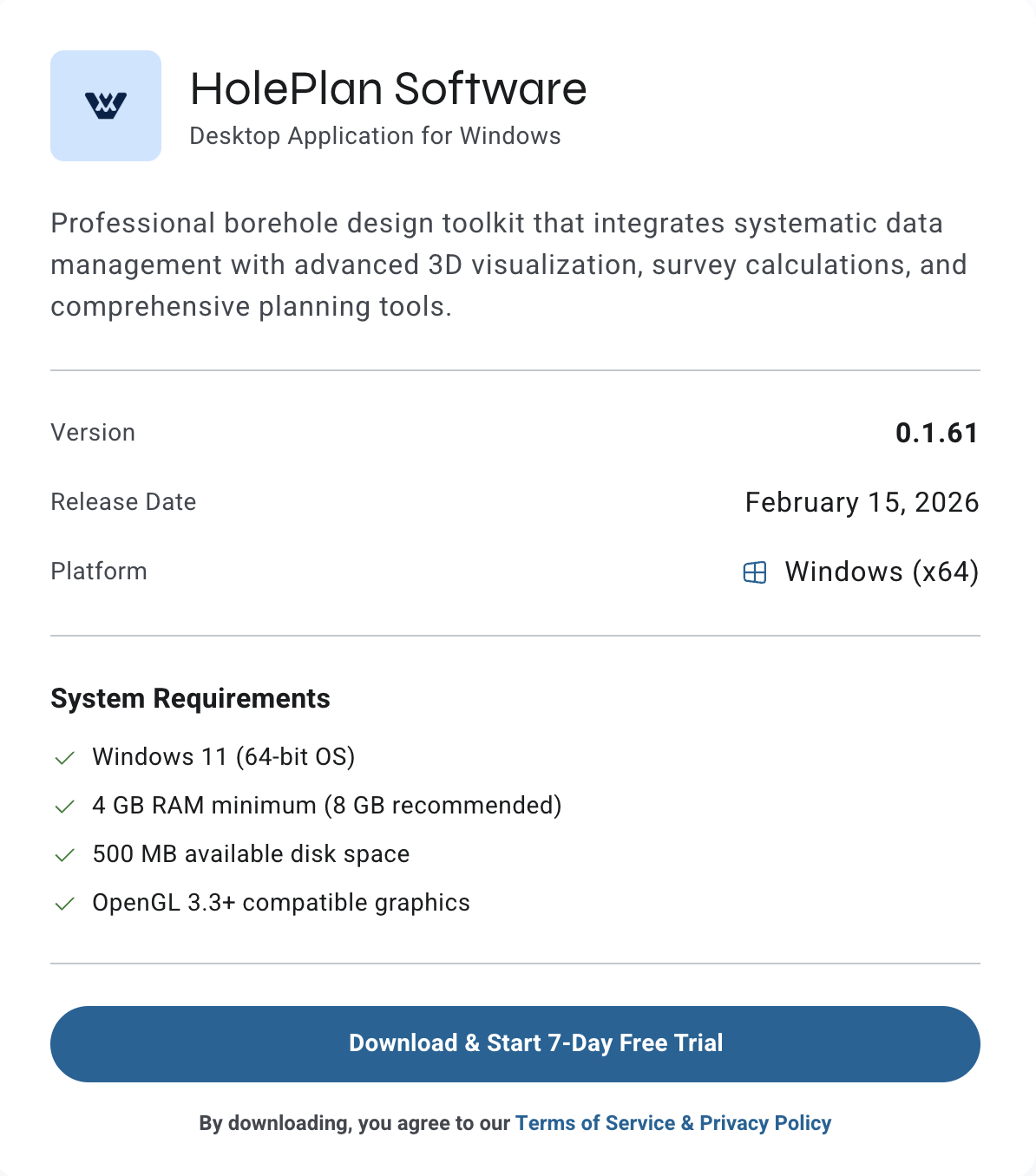
After registration, navigate to the Pricing List section. Click any of the subscription buttons to be redirected to the secure Download Page. From there, you can download the HolePlan installer directly to your workstation.
Access the download page through any of our subscription options.
4. Instant 30-Day Free Trial
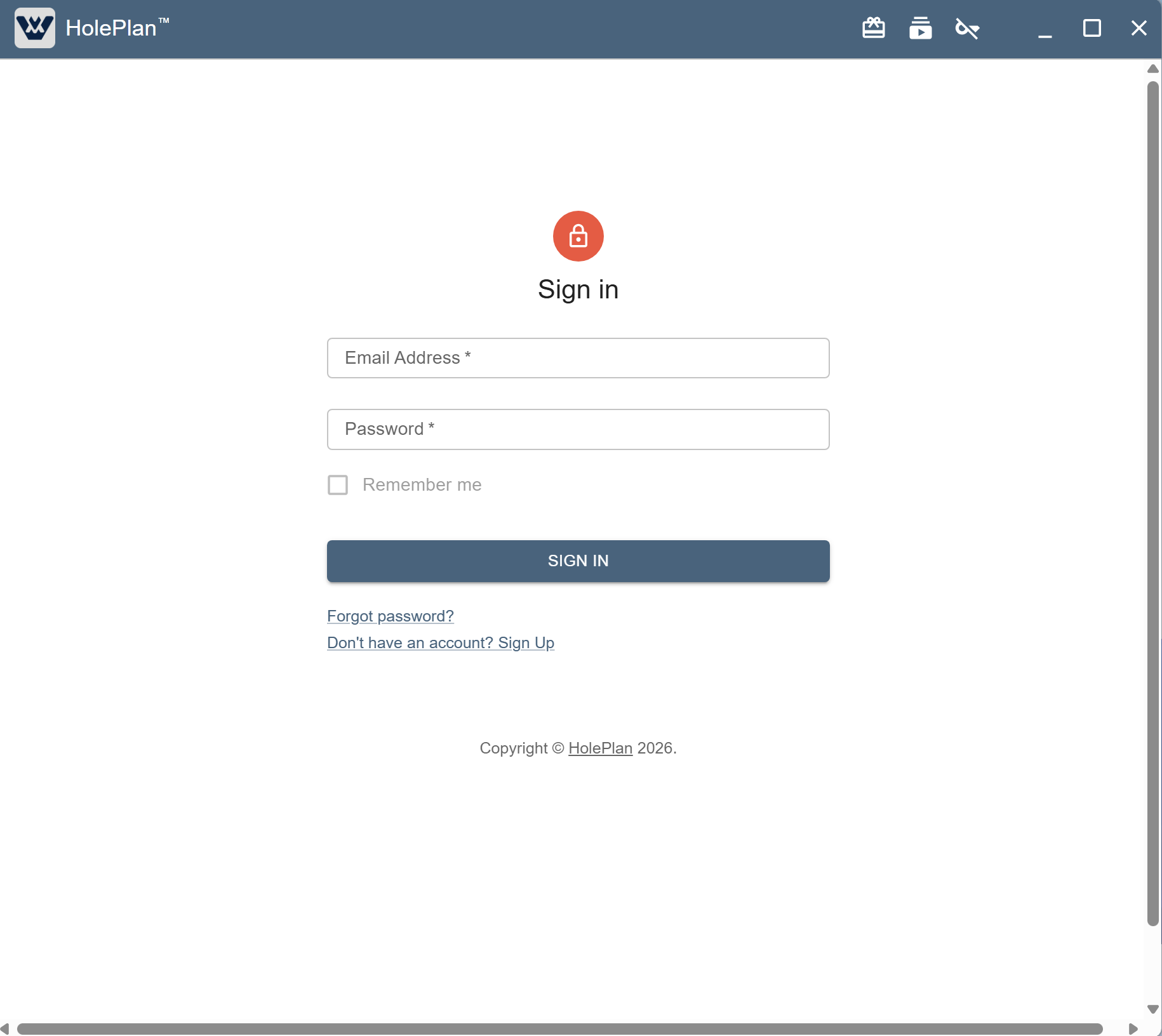
Once the installation is complete, launch the desktop application and log in using your web credentials (email and password).
Automatic Start: Your 30-day Free Trial activates automatically upon your very first login.
Full Experience: The application is completely unlocked, offering all premium features for the best possible evaluation experience.
Trial Tracker: You can monitor your remaining trial time at a glance in the application header.
Log in to activate your trial. Monitor your remaining days in the top header.
5. Select Your Professional Subscription
If you are satisfied with the software, you can upgrade to a paid license. Choose the subscription plan and period that fits your project needs:
Subscription Models:
Field Tech: Optimised for onsite data management.
Directional Pro: Our full suite for advanced engineering and trajectory planning.
Flexible Periods: Available for 1, 3, 6, or 12 months.
Select the plan and duration that best suits your engineering requirements.
6. Secure Purchase
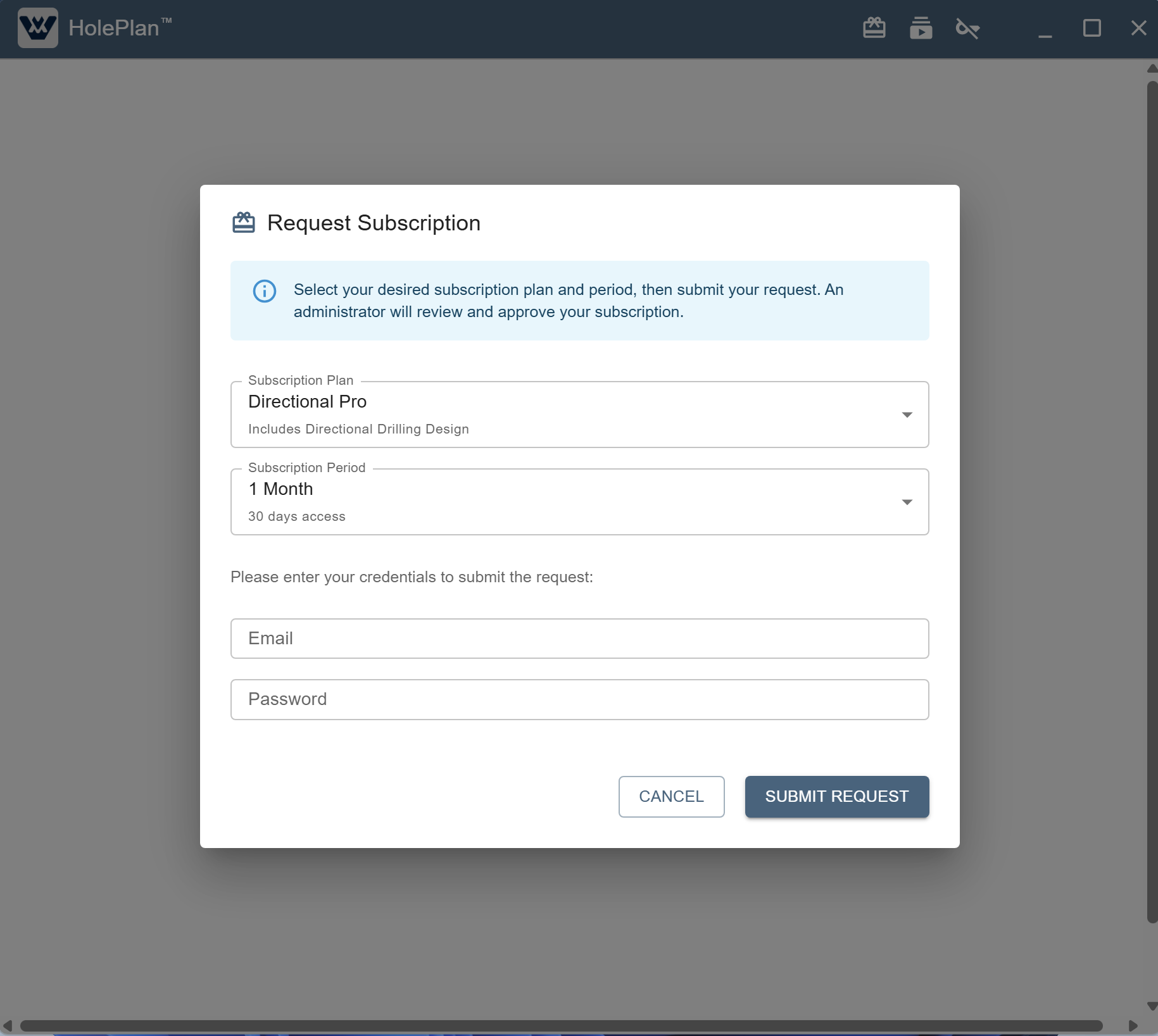
When you are ready to purchase, submit a request for your desired subscription plan and period using your credentials.
Important: Licensing & Hardware Binding
Our system offers flexible management: a single user can request a license for themselves or initiate multiple requests for different team members (for example, a supervisor managing credentials for their entire staff).
Please Note: Every active license is strictly bound to the very first computer where those specific credentials are used to log in. Once an account is activated on a workstation, the license is locked to that specific hardware. This ensures dedicated and secure access for every authorised device in your fleet.
7. Professional Activation
Once your request is processed, you will receive a confirmation email.
Open the HolePlan desktop application.
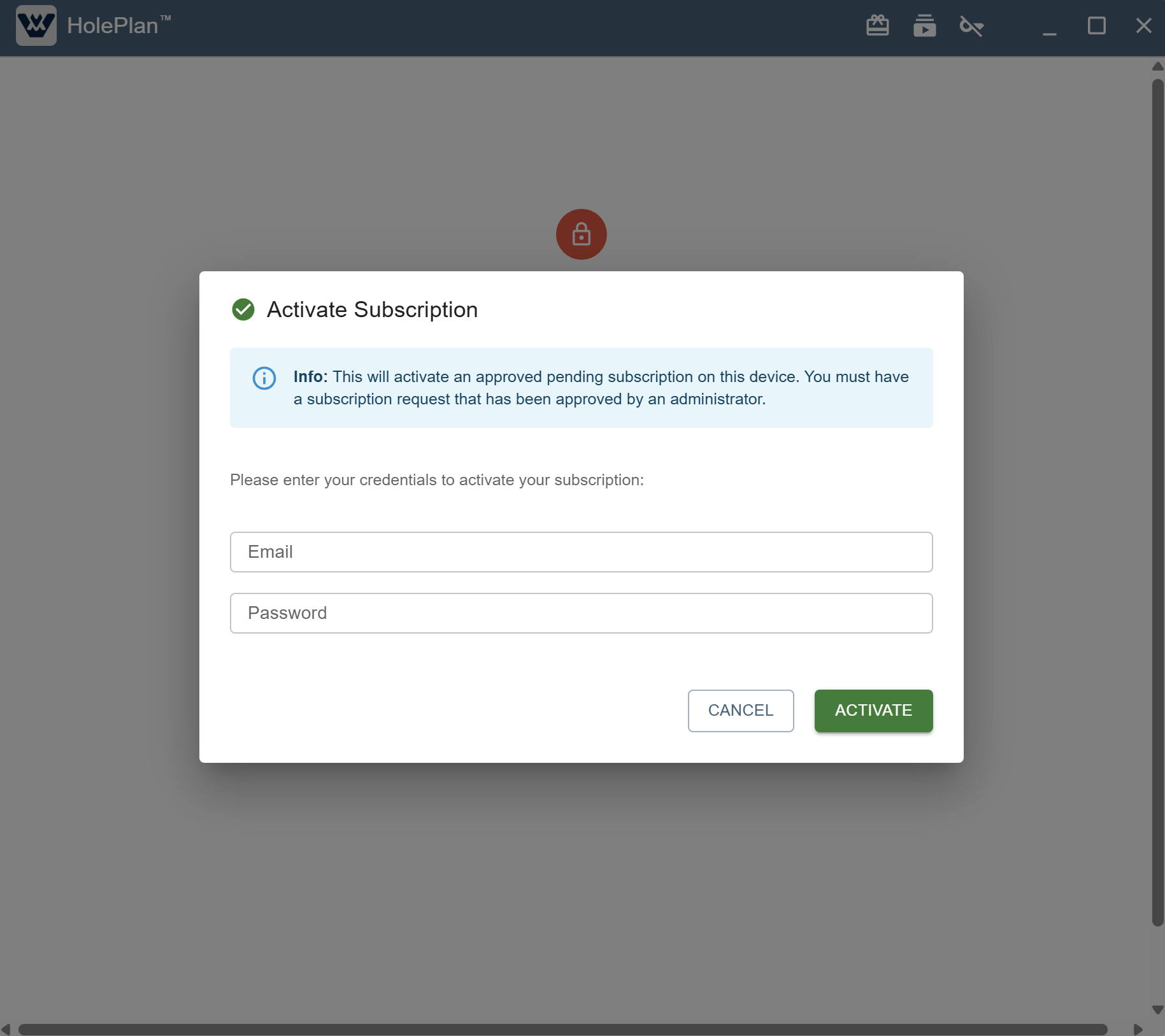
Click the Activation button.
Enter your credentials (email and password). Your professional license will now be fully active and ready for use.
Check your email, then use the Activation button in-app to unlock your professional tools.
8. Managing Your Installation (Deactivation)
If you need to remove HolePlan from your current computer or wish to transfer your access to a new device, please follow these steps:
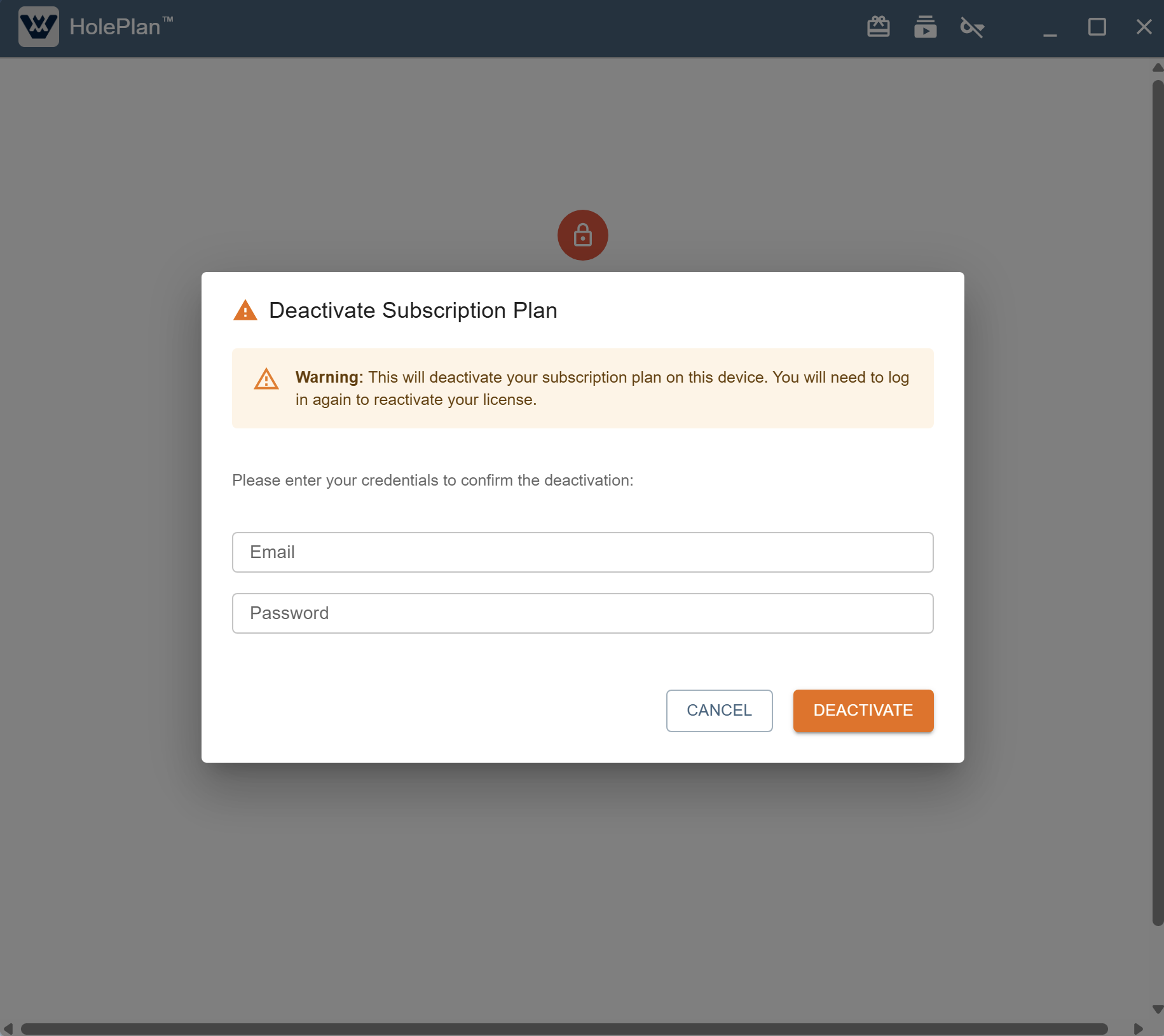
Deactivation: To remove the application from your current workstation, navigate to the "Deactivate" button. You will be prompted to confirm this action using your initial credentials (email and password). This process safely clears the HolePlan application from your computer.
Moving to a Different Computer: Deactivation does not automatically release your license for a new device. If you need to transfer your installation to a different computer, you must contact us directly for assistance. Our team will verify your request and guide you through the setup on your new hardware.
CAUTION
Please be advised: Deactivating your application immediately terminates the active subscription period associated with that device.
No Recovery: Once deactivated, you cannot reactivate the software using the remaining time from your previous subscription.
New Subscription Required: The system will treat any subsequent activation as a new request, and you will be required to purchase a new subscription plan to continue using the software.
Think Before You Deactivate: Only use the Deactivate button if you are certain you want to end your current subscription session.
Frequently Asked Questions (FAQ)
Your data is your property and your responsibility. All database information is stored locally on your computer. You can access your project files anytime, but an active license is required to use the software’s calculation and visualisation tools.
No. Licenses are bound to the specific hardware where they are first activated. For transfers to new hardware, contact support.
Yes. A supervisor can make requests for many users, and each user can activate their license on the computer where those specific credentials are first entered.